
Quarantine report emails let you know when messages have been sent to your quarantine. If you prefer not to see these reports in your Inbox, you can create an Outlook rule to automatically move them to a separate folder and mark them as read. This keeps the reports available so you can review them if you are expecting an email that may have been quarantined by mistake.
Note: We recommend keeping your quarantine reports rather than deleting them as they arrive. It serves as a reminder that you have emails in the quarantine that you may want to review. If you simply do not want to see the reports in your Inbox, we recommend following the steps below to move them to a separate folder and mark them as read.
1. Go to https://outlook.office.com/ (To ensure the mail rule is always active)
2. Click on the gear symbol in the upper right corner of the page.
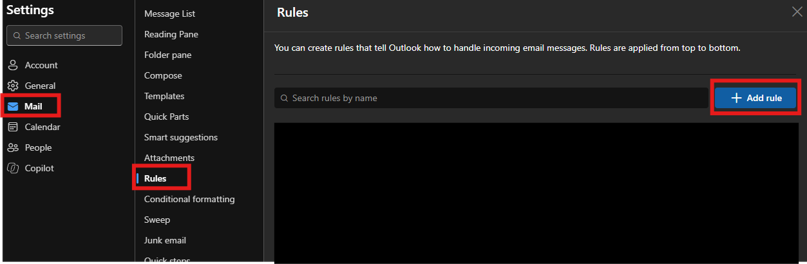
3. Select Mail -> Rules -> Add Rule
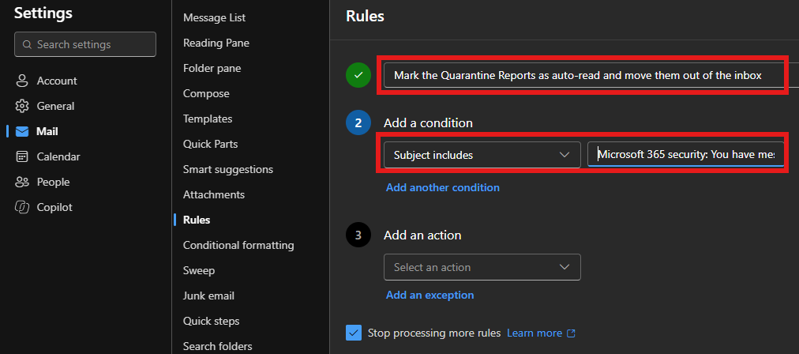
4. Give the rule a name. For example, Mark the Quarantine Reports as auto-read and move them out of the inbox
5. Set the condition to either “Subject Includes” -> “Microsoft 365 security: You have messages in quarantine” or “From:” -> quarantine@messaging.microsoft.com
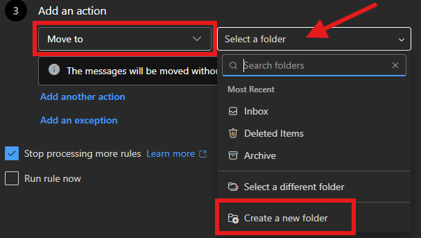
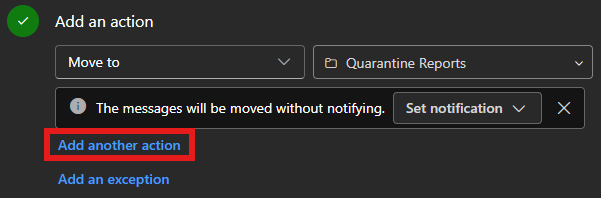
6. For the actions, add “Move To”, set “Select a Folder” to “Create a new folder”, and give it a name like “Quarantine Reports”.
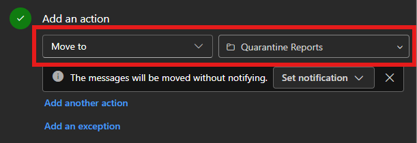
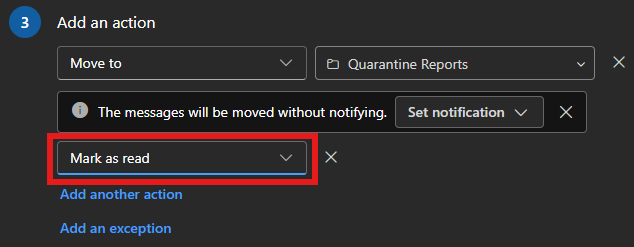
7. Select “Add another action” and choose “Mark as Read”.
8. Click “Save” to save the rule.