
Voicemail
Voicemail is accessed differently depending on the devices deployed at your school. For more information please see the following sections:
- Polycom phones
- SNOM phones
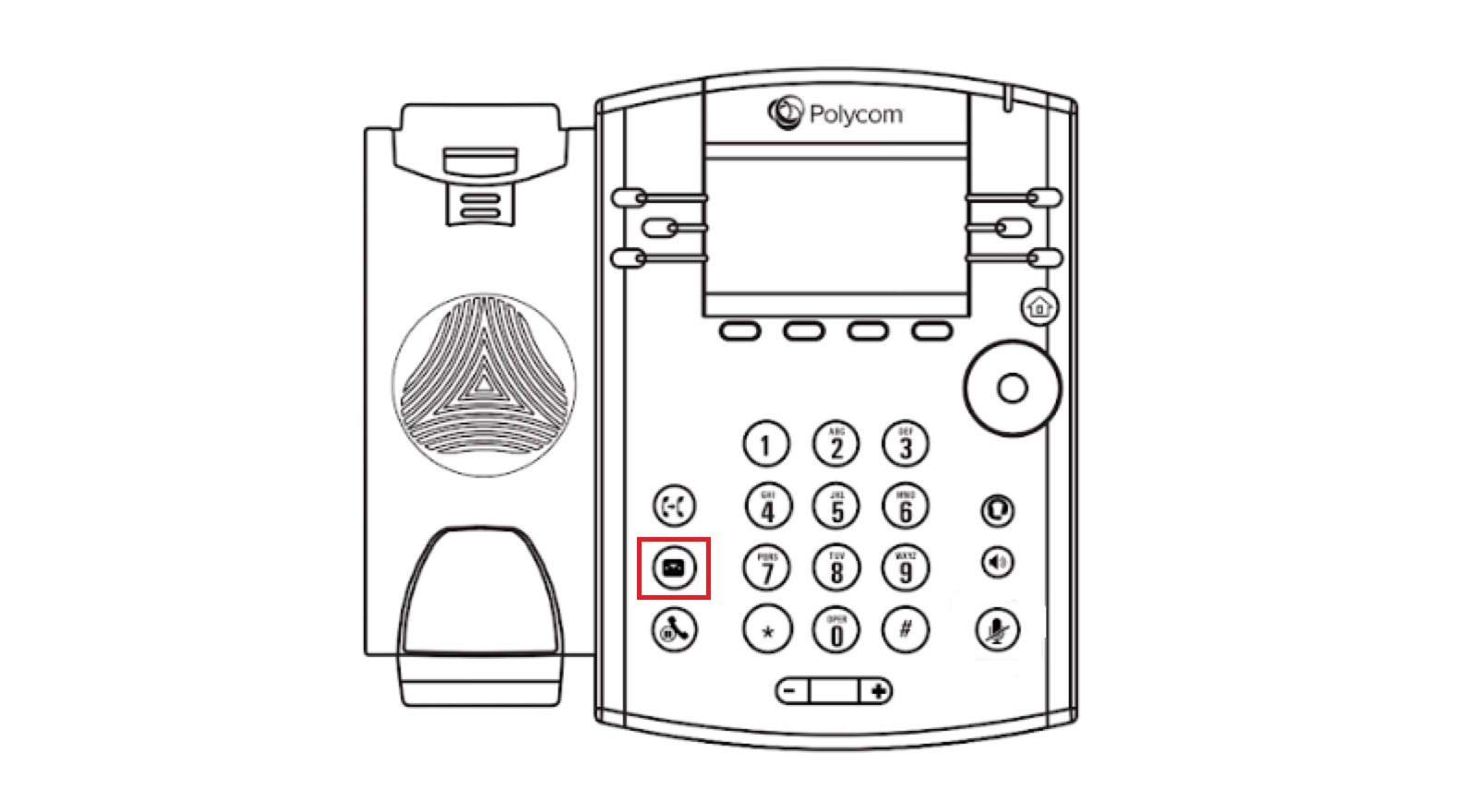
Voicemail Setup :
To set-up your voicemail for the first time, press the Voicemail button
Next, select press 2 to change your personal greeting. Press 1 to play and record your personal greeting. Press 2 to play and record your greeting for when you are away. When completed, press 1 to access the voice messaging main menu. From here, you can record your greetings and retrieve voicemail messages.
Accessing Voicemail :
A red message waiting indicator light notifies you when you have a new voicemail message. To check your voicemail, press the Voicemail button. Follow the audio prompts to retrieve your voicemail messages.
The first thing you’re likely to have noticed with the Snom phones, is that your voicemail messages are sent to you in your email, along with a transcription. In addition to this, it is still possible to check the voicemail on the phone by pressing the ‘messages‘ button on the right side of the phone.
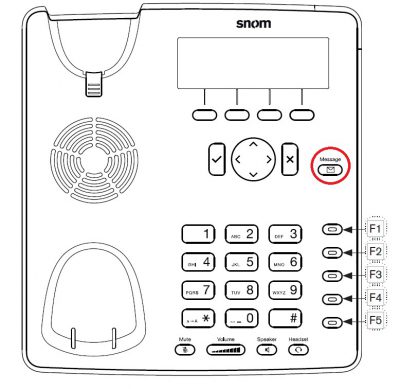
If this is the first time you have accessed your voicemail then the system will walk you through the process of setting up your voicemail box. The system will ask you to speak your name for the directory search or you can choose to use the default system pronunciation. You will then be prompted to record a voicemail greeting. You can either do so or use the default system greeting.
After you have finished setting up your voicemail, there is one more setting you may wish to change. The system default for voicemail is to use voice commands. If you would prefer to use the keypad then at the menu say Personal Options and then press 4.