
Claim My Account – Step-by-Step Guide
New staff members need to Claim their account in order to activate and set the password. To Claim Your Account please click Claim My Account and follow the Step-by-Step instructions.
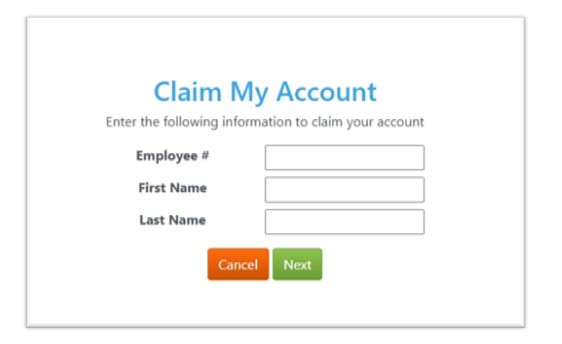
Step 1: Enter Your Information
On the Claim My Account page, enter the following details:
-
- Employee ID
- First Name
- Last Name
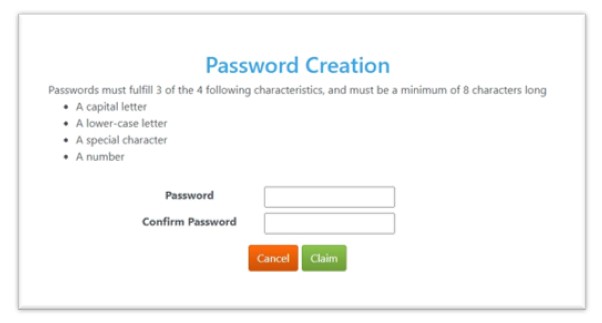
Step 2: Create Your Password
Your password must include at least 3 of the following:
-
- A capital letter
- A lower-case letter
- A special character
- A number
Enter and confirm your new district password.
Please log in using the district email format: firstname_lastname@mrpm.sd42.ca and password. To login to district email please click on the Staff Webmail on the SD42 website.
After claiming your account, please proceed with configuring Multi-Factor Authentication (MFA). This is required in order to access your email on personal devices.
Follow the setup guide here:
-
- Multi-Factor Authentication (MFA) Guide
- To watch Multi-Factor Authentication (MFA) instructional video click here: MFA Video
- Microsoft Support link for MFA How to add your accounts to Microsoft Authenticator – (See the section titled “Add a work or school account using a QR code”.)