To translate this page, please select your preferred language in the top-right corner of the webpage. A PDF version of the guide is available at the bottom of the page.
Welcome to the new MyEducation BC (MyClass) for parents
Here are a few things you can do on MyClass:
- Check your child’s attendance
- Check your child’s assignments
- Check your child’s enrolled classes
- View report card
- Update your child’s contact details and address
- View your child’s marks from the current and previous school years
Getting Started
You will require a login ID and password to access your MyClass account. If you are a parent new to the district, login details should have been e-mailed to you. If you have not received your account information, please contact MyClass@sd42.ca.
Go to the MyClass page (Parents Tab) to log in or to SD42 to connect to MyEducation BC.
The MyClass login screen looks like this:
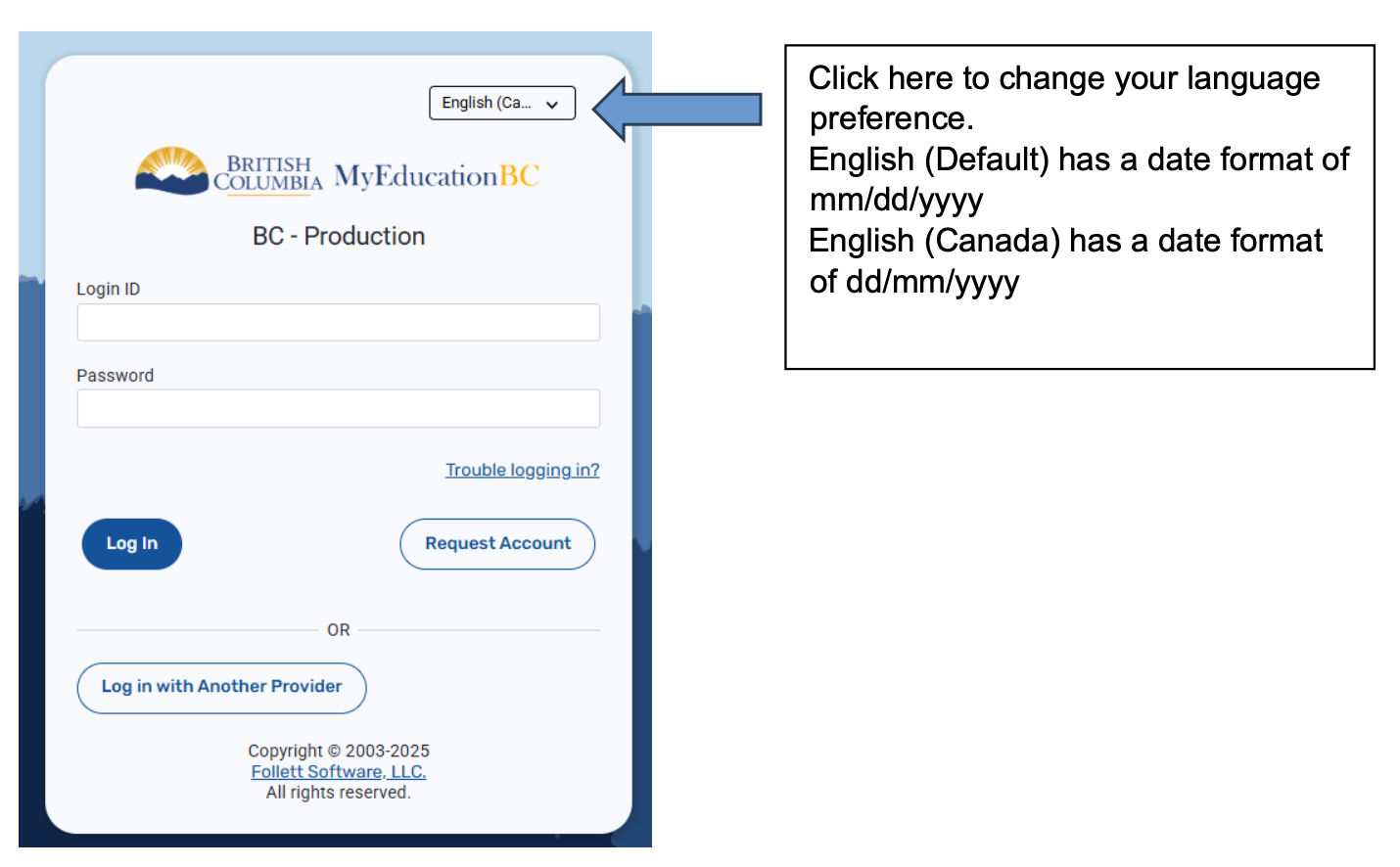
For first-time users, log in with the credentials provided. You will be asked to change your password and set up a security question.
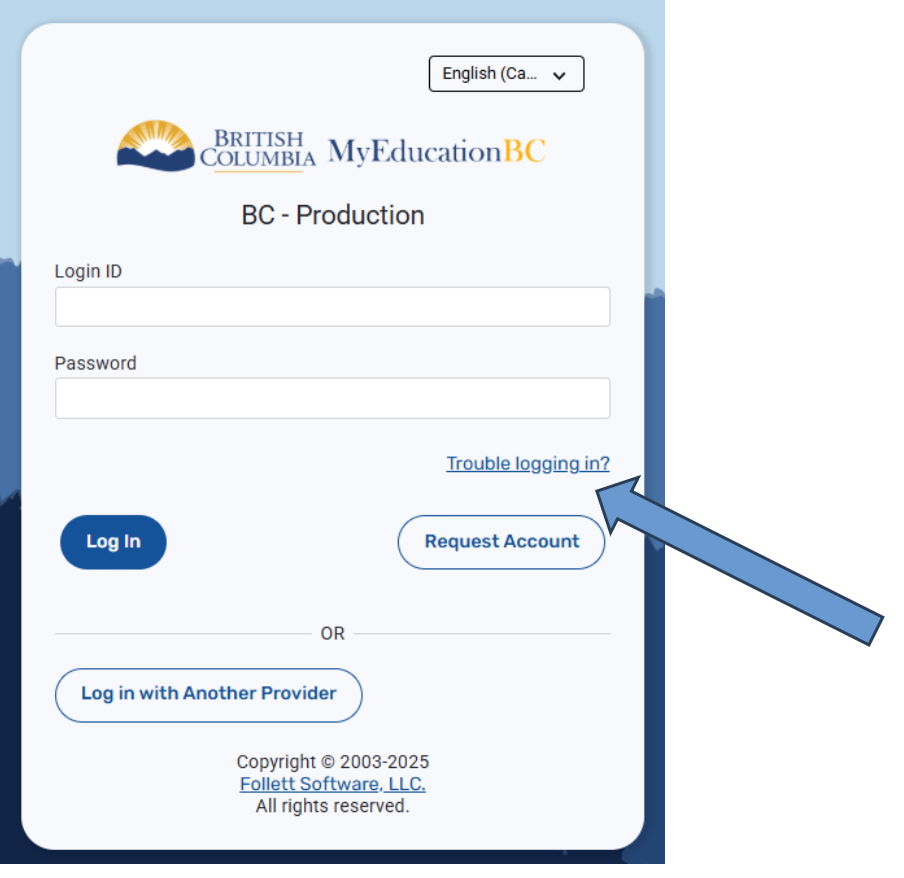
If you have logged in before but are having trouble accessing your account, use the Trouble logging in? option (see screenshot below) to recover your login ID or password.
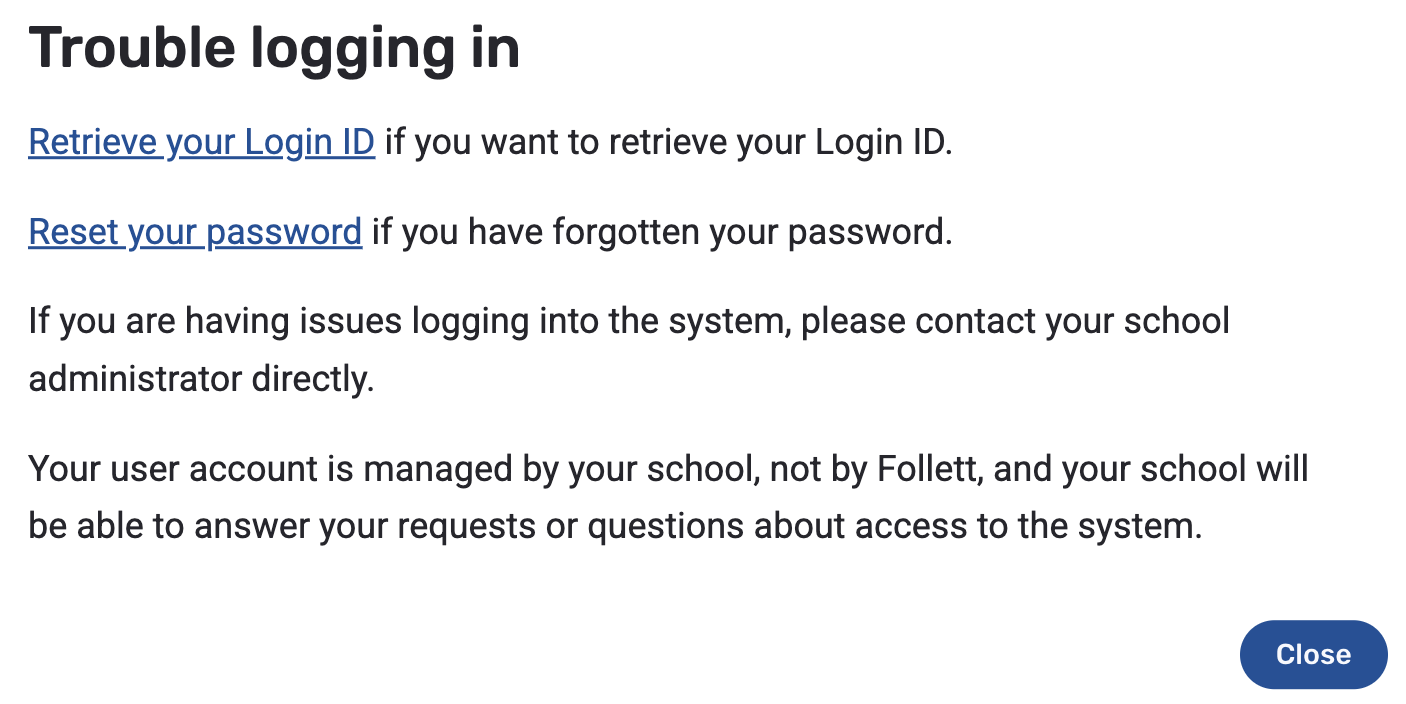
Retrieve Your Login ID – To retrieve your login ID, enter the primary email address you provided during your child’s initial school registration. Please note: This may be different from the email you currently use to log in to the Parent Portal.
Reset your password – To reset your password, enter your Login ID.
The new login details will be emailed to you.
The new MyClass website can be accessed on multiple devices – Desktop, Laptop, Tablet and Smartphones.
Once you log in, the home screen looks like this:
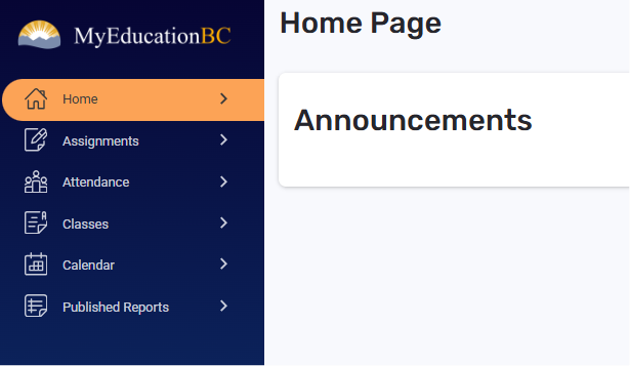
From here, you can easily access key information by clicking the items in the left menu bar: Assignments (including due dates), Attendance (daily and class), Classes, Calendar (upcoming course events/tasks), and Published Reports (report cards/learning updates).
To view more detailed information, you can switch to the full website view.
To access the full website:
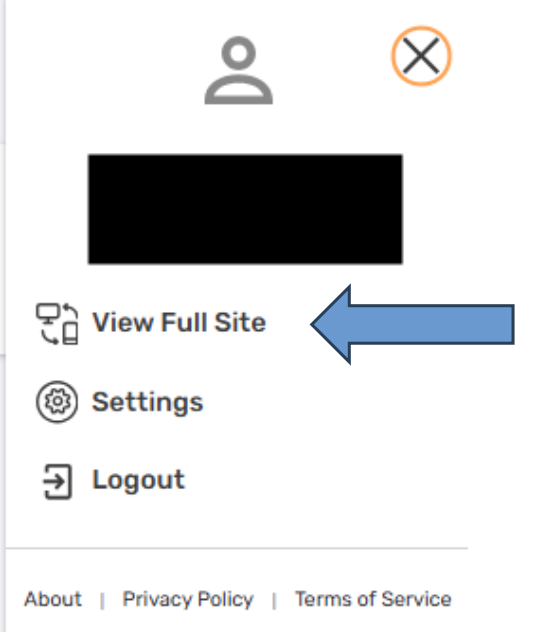
- Click the profile icon on the top right of the screen, which looks like this:

- Click View Full Site

Navigating the full website
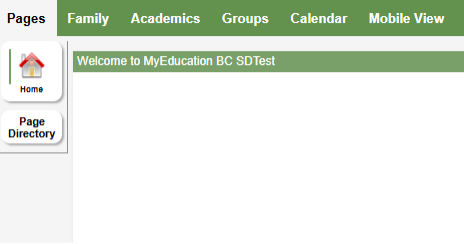
There are 6 Top Tabs on the main page: Pages, Family, Academics, Groups, Calendar, and Mobile View.
Pages Top Tab
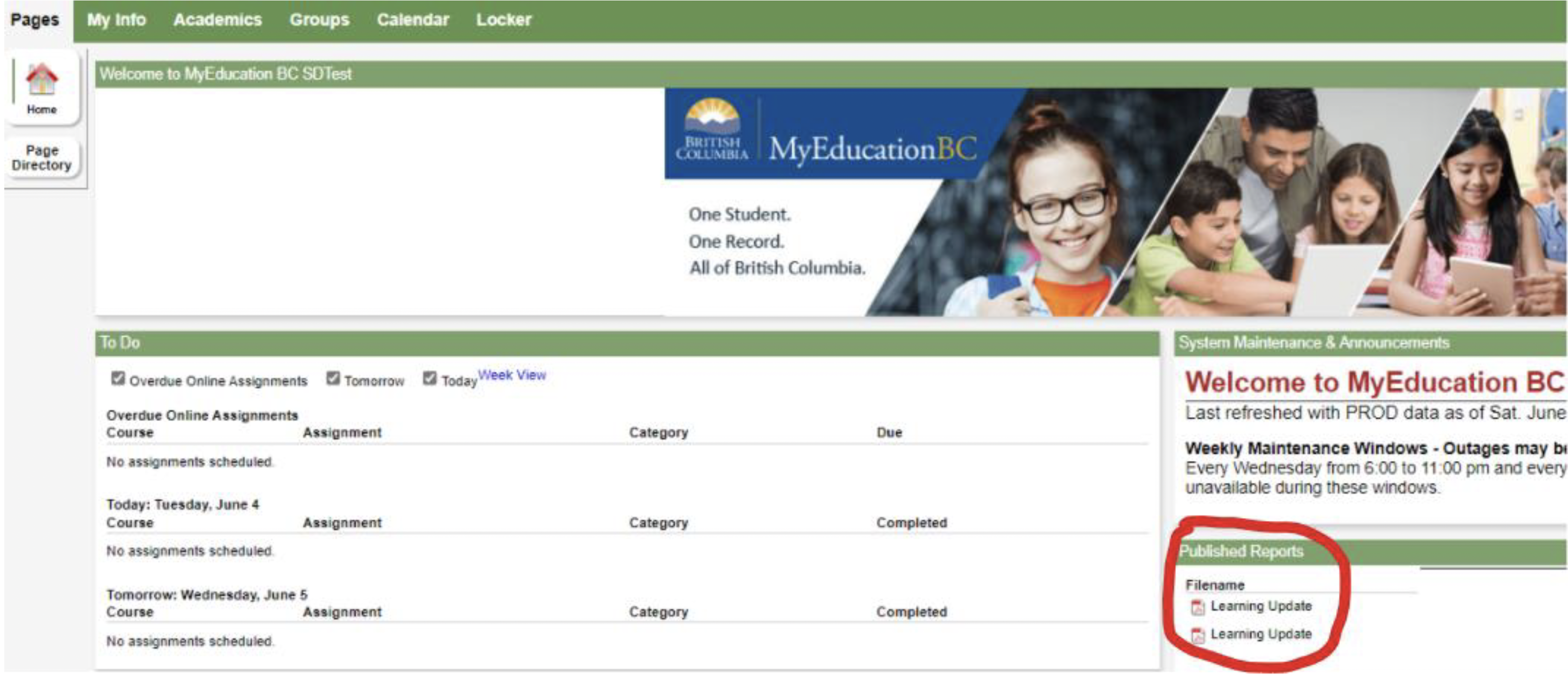
The Pages top tab is the landing page that you will see after clicking “View Full Site.”
Here, you will be able to view report cards (Learning Update) under “Published Reports” once the school publishes it.
Family Top Tab
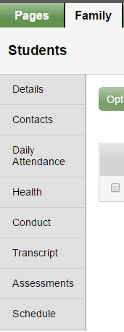
Details shows basic information about your child.
Contacts lists the emergency contacts on file.
Daily Attendance lists all the days that your child has been late/absent and the reason (if it was supplied to the office).
Transcript displays class marks from the current and previous years.
Assessments shows whether the FSAs in grades 4 and 7 were completed, as well as uploaded marks from government exams in grades 10, 11, and 12.
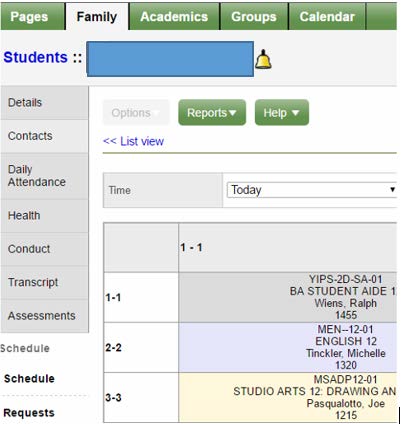
Schedule provides information on your secondary student’s timetable. You can look at today’s schedule, the semester schedule, or the whole year, just by switching the drop down at the top of the window. In the spring, you can view course requests that your child has made for the next school year.
Membership shows what schools your child has attended (note: E=enrolled, W=withdrawn).
Academics Top Tab
Here, you can view your child’s courses, attendance, and a snapshot of current performance, provided that the MyEducation BC gradebook is being shared.
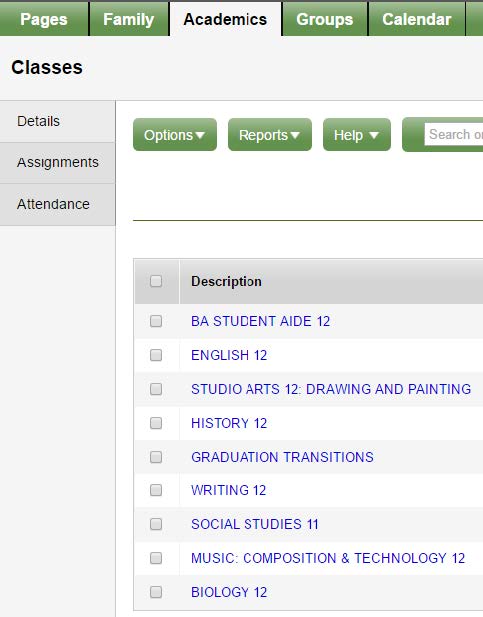
Each class name is in blue, which means it is a link. If you click on that link, it will automatically open up the Details side tab.
Assignments provides details about each assignment and your child’s results (if the teacher uses the Gradebook). If no marks are visible, use the dropdown menu at the top centre and select All. Each assignment is also a clickable link for more information.
Attendance for high school students shows the attendance for each class.
Groups Top Tab
View the groups your child belongs to.
Calendars Top Tab
View upcoming assignments and events.
Mobile View Top Tab
Return to the new home screen.